Opus Clip gives visual thinkers a place to test an idea before a larger production. Make Opus Clips for a specific audience, then decide what deserves another take.
Turn a Hook Into an Opus Clip Scene
A recipe creator can test an Opus Clip opening before the cooking begins: steam above a bowl, with a gentle camera approach. Use Opus Clip to communicate that moment, not to fabricate a recording of a real event. Compare OpusClip takes at phone size and select Opus Clips with a readable hook. Add verified recipe instructions and captions later, keeping approved Opus Clips and the OpusClip settings together.
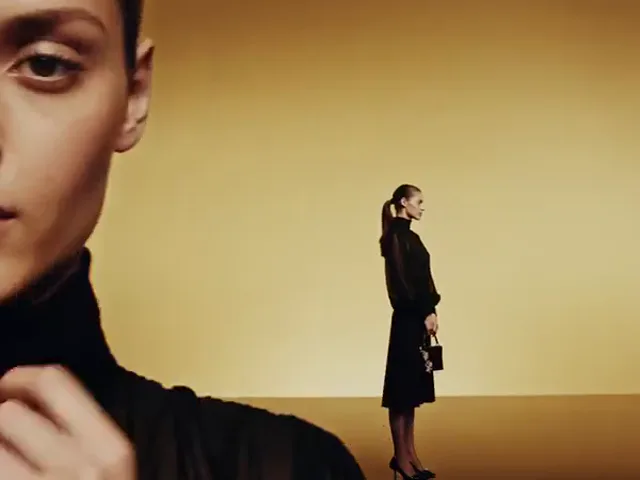
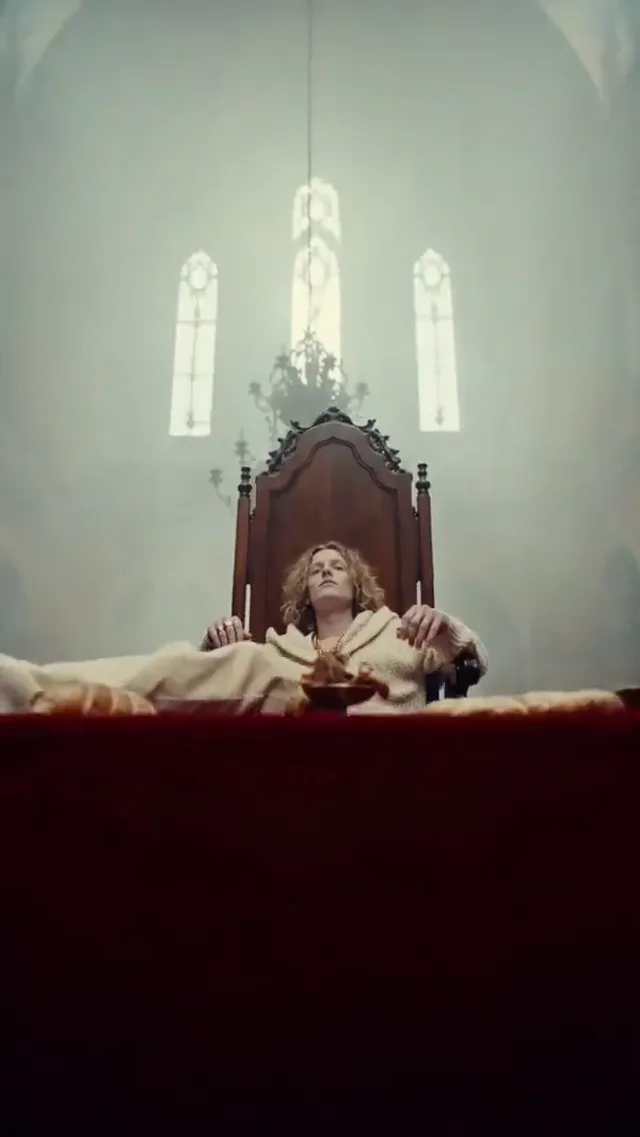
Studio slide: Layered copies of a fashion portrait slide across a clean studio background.
Build an Opus Clip Product Concept
A shop can develop an Opus Clip mood study from a permitted ceramic vase photo. Ask Opus Clip for a slow reveal across a neutral tabletop, then inspect the rim, glaze, label, and proportions. Compare OpusClip output with the actual product before approval. Treat Opus Clips as proposals, not proof of performance; OpusClip should support the creative brief while exact product photography carries detail-sensitive claims.
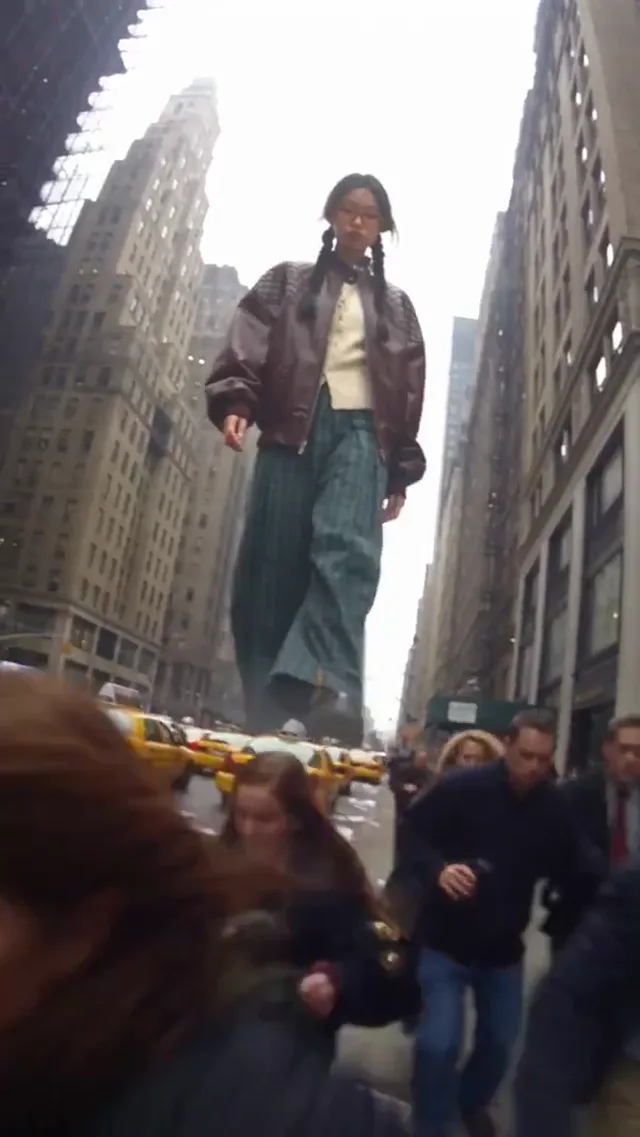
Floating fall: A person falls backward as a coffee cup and other belongings hang in midair.
Explain an Idea With Opus Clip
An educator can use Opus Clip to illustrate erosion through a changing landscape. Give Opus Clip a simple viewpoint and one understandable action, not a request for a complete documentary. Explain how the OpusClip visualization simplifies reality, and compare Opus Clips with reliable teaching material. Add narration separately and provide accessible text notes, identifying Opus Clips as synthetic illustrations rather than scientific evidence.
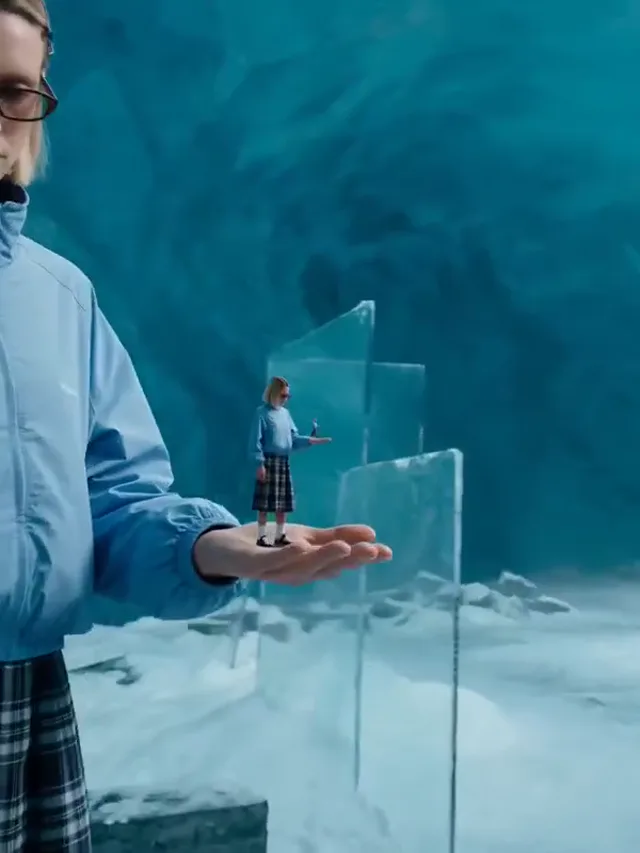
Cutout: Flat pieces of the scene peel away and return around a central figure.
Pitch a Direction With Opus Clip
A studio can use Opus Clip to discuss a rainy alley, a lighting mood, or a restrained reveal before choosing a location. Keep the same Opus Clip brief while testing a different camera direction, so collaborators compare a meaningful change. Record feedback alongside the OpusClip settings. A sequence of Opus Clips can support the storyboard, but continuity, permissions, sound, and final delivery remain production decisions.
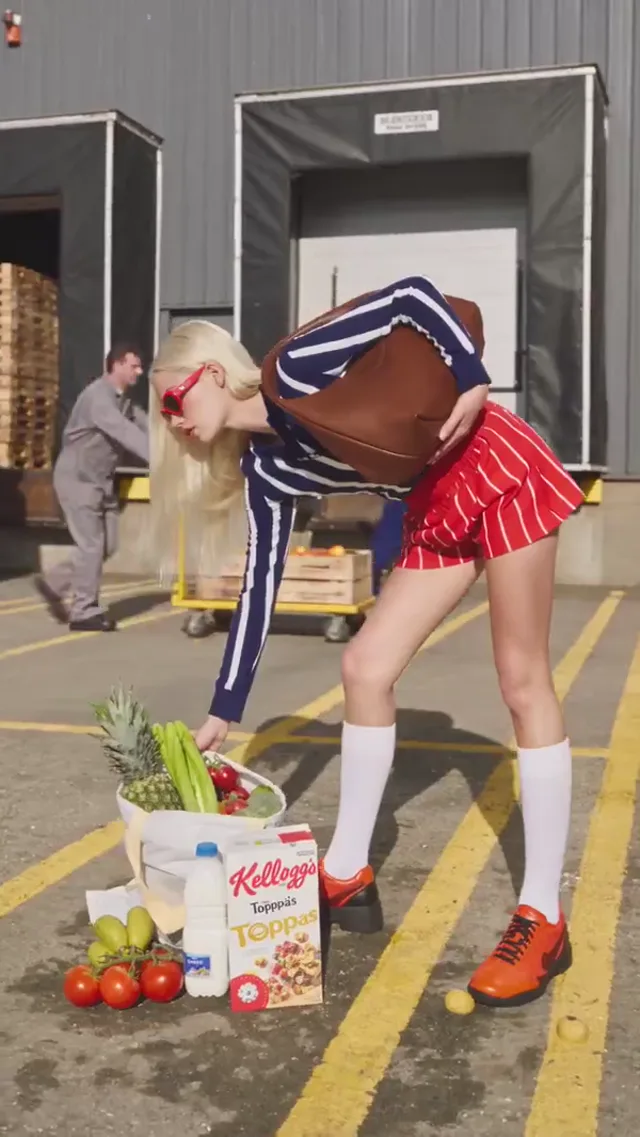
Wild ride: A sweeping camera follows a subject and a drifting car through a city street.
Match the Model to the Brief
In Opus Clip, compare supported inputs and settings before submitting. OpusClip model choices can change; use the current menu, not a preview, to confirm availability.
Gemini Omni 1.1 Flash
MiniMax H3
HappyHorse 1.1
Seedance 2.0
Seedance 2.0 Fast
Seedance 2.0 Mini
Seedance 2.5
Kling 3
Kling 3 Turbo
Kling O3
Kling 3 Motion Control
Kling Avatar
Qwen Image 3
Qwen Image 3 Pro
GPT Image 2
Nano Banana 2
Nano Banana Pro
Flux 2 Pro
Flux 2 Flex
Why Choose Opus Clip for a New Scene?
Opus Clip is useful when the footage you need does not exist yet. Build Opus Clips around a clear brief, inspect the output, and keep creative judgment in your hands.
Start an Opus Clip brief with the subject, one action, and a clear camera position. Compare OpusClip takes against that brief instead of choosing spectacle. If Opus Clip loses the action, simplify the next prompt. Keep the strongest Opus Clips and record the OpusClip settings you actually used.
Give Opus Clip a Visual Starting Point
A reference can establish the composition, color, and subject for an Opus Clip. Ask Opus Clip for motion around that image rather than an unrelated scene. In OpusClip, compare the output with your reference throughout playback. Inspect Opus Clips for changing faces, distorted objects, and background drift; OpusClip does not promise exact preservation.
Text vs Image vs Keyframes
Choose Opus Clip text input for exploration, an image for composition, or supported keyframes for a transition with endpoints. An Opus Clip workflow should fit the assets you have. OpusClip controls vary by model, so check availability before preparing references. Compare Opus Clips by the intended action, and record which OpusClip input approach worked.
Generation vs Clipping vs Editing
Opus Clip develops new visual material from supported inputs. A clipper selects moments from an existing recording; an editor arranges footage, captions, and sound. Choose an Opus Clip when you need a new shot, not automatic interview highlights. Use OpusClip alongside the right production tools and review Opus Clips before final assembly.
Make Opus Clip Experiments Comparable
Keep your reference, framing, and brief consistent, then change one variable in Opus Clip. Review the selected model and displayed credit quote before each submission. Compare Opus Clips by motion clarity and usable detail; save OpusClip settings that are worth trying again.
Take Opus Clip Beyond a Rough Draft
Inspect every Opus Clip before assembling a sequence. Check hands, signage, object shapes, and factual implications at normal playback speed and on paused frames. Add licensed music and accurate captions in your editor. Publish Opus Clips only after confirming relevant input permissions and output terms.
From Brief to Opus Clip in Three Steps
Make the first test small and the next decision clear.
Practical guidance for making Opus Clips, choosing inputs, and checking the result.
What is Opus Clip on opusclip.art?
Opus Clip on this website is a workspace for developing new moving scenes from text and supported references. Start an Opus Clip project with a specific visual idea, then inspect the result before editing. OpusClip here means opusclip.art, not a similarly named service. Review Opus Clips against the current generator controls; the Opus Clip name alone does not establish an affiliation or a feature guarantee.
Does Opus Clip turn long recordings into shorts?
This Opus Clip homepage is for creating new scenes, not automatically finding podcast or webinar highlights. Use a dedicated clipper for recorded interviews. An Opus Clip scene can provide a supplementary visual, but automatic captions, transcript editing, and social publishing should not be assumed. Check OpusClip controls before submitting, and treat Opus Clips as generated material rather than footage recovered from a recording.
Opus Clip vs a video clipper vs an editor: which should I use?
Use Opus Clip when the shot does not exist yet, a clipper when you need moments from a recording, and an editor when you need a finished sequence. These tools serve different stages. OpusClip output can become one ingredient in the edit. Compare an Opus Clip with your brief, then assemble approved Opus Clips with deliberate pacing, sound, captions, and continuity.
How do I write a useful Opus Clip prompt?
A useful Opus Clip prompt names a subject, one action, a setting, light, and a camera direction. Try a red kite crossing coastal cliffs while a wide camera follows slowly in evening light. Keep the Opus Clip instruction focused instead of combining conflicting movements. Compare OpusClip results against the brief, then refine the weakest instruction. Choose Opus Clips that communicate the intended action.
When should I choose text or an image in Opus Clip?
Choose Opus Clip text input when the composition is still open to exploration. Choose an image-compatible Opus Clip mode when a subject, palette, or framing already matters. In either case, OpusClip results require inspection rather than an assumption of exact preservation. Keep early Opus Clips simple and compare movement, subject detail, and composition before changing the input or selected model.
Can Opus Clip follow start and end frames?
Check the selected Opus Clip model for start-frame, end-frame, or reference controls before preparing assets. Not every Opus Clip workflow exposes the same inputs. Follow the requirements shown in OpusClip and use related images for a plausible transition. Review Opus Clips throughout playback: correct endpoints do not guarantee convincing intermediate movement, and an Opus Clip still needs a complete visual check.
Who should use Opus Clip for social content?
Opus Clip is useful for a creator testing a visual hook, illustrative cutaway, or mood study. Decide what viewers should understand before writing the Opus Clip prompt. Keep the main action clear on a phone screen and use OpusClip output as generated illustration, not evidence of a real event. Add readable captions separately and select Opus Clips that support the actual story.
Can Opus Clip animate a shop product photo?
Begin with an image-compatible Opus Clip workflow and a permitted product photo. Ask for a modest reveal rather than a complex transformation. Inspect the Opus Clip for changed packaging, missing parts, invented text, and altered proportions. OpusClip can support a creative proposal, but Opus Clips should never imply a product feature that the real item cannot substantiate. Use exact photography when fidelity is essential.
How can Opus Clip keep a character recognizable?
Give Opus Clip consistent references where the selected model supports them. Keep clothing, framing, and light stable while testing one short action. Inspect the Opus Clip throughout playback rather than checking only its first frame. OpusClip cannot guarantee identical faces, hands, or accessories. Choose Opus Clips after reviewing those details, and use another production method if exact identity is essential.
Why use Opus Clip before a larger production?
Use Opus Clip to explore atmosphere, composition, and a possible camera move before arranging a larger production. Share an Opus Clip with a concise brief so collaborators can discuss a concrete direction. OpusClip output is a proposal, not a production guarantee or a measured savings claim. Label Opus Clips clearly and collect feedback before investing in final locations, equipment, sound, and delivery.
How much does an Opus Clip generation cost?
Check the selected Opus Clip model and displayed quote before every submission. Duration, resolution, and optional controls can affect required credits; a plan name does not specify a fixed number of videos. Budget for an Opus Clip iteration rather than assuming the first take will be usable. Review current OpusClip account allowances and price information before purchasing credits for more Opus Clips.
Is Opus Clip free, or do I need an account?
Check the current Opus Clip offer and sign-in requirement instead of assuming unlimited free generation. A selected Opus Clip workflow may require an account and sufficient credits. Read the quote in OpusClip and distinguish any introductory allowance from the resources needed for your own task. Preview examples are not proof that additional Opus Clips are included with your account or selected plan.
Which Opus Clip sizes, lengths, and audio options are available?
Read the controls for the Opus Clip model you selected. Ratios, duration, resolution, and audio options vary; not every combination is available. Confirm an Opus Clip setup again after switching models, because a control may disappear or change. In OpusClip, plan around the intended screen rather than the largest setting. Leave caption space and review Opus Clips at the destination size.
Can I publish Opus Clips for commercial work?
Before publishing an Opus Clip for a client or advertisement, check relevant plan and model terms. Confirm permissions for artwork, likenesses, trademarks, and music you supply. An Opus Clip does not automatically clear every input or output for commercial use. Review the OpusClip asset with the client, retain appropriate approvals, and check final Opus Clips for invented product details or misleading factual implications.
What if my Opus Clip looks distorted or ignores the prompt?
Identify one concrete Opus Clip problem, such as excessive camera motion, a changing object, or an unclear action. Revise that instruction or reference before running another Opus Clip test. Use OpusClip comparisons to judge what changed rather than adding complexity immediately. If Opus Clips repeatedly miss the same requirement, simplify the scene, try another supported model, or use conventional footage.
How do I find or troubleshoot an Opus Clip task?
Check the Opus Clip task status and My Videos before submitting again. A delay is not necessarily a completed failure, and queue conditions can affect processing. If an Opus Clip result is missing, contact support with the task identifier, selected model, approximate time, and a non-sensitive error. Never send OpusClip support passwords or full payment details when asking about Opus Clips.
Can I make Opus Clips on a phone?
Use Opus Clip in a suitable mobile or desktop browser, checking actual upload and playback behavior on your device. Review an Opus Clip on a larger screen when small details matter, then preview it on the intended phone screen. Keep a local copy of approved OpusClip results while they are available. Assemble Opus Clips in an editor for final captions, audio, and delivery.
What should I check before sharing an Opus Clip?
Watch the entire Opus Clip, then pause on faces, hands, labels, and frame edges. Check factual implications and input permissions before choosing an Opus Clip for publication. OpusClip examples do not guarantee your own result. Add accurate captions or licensed sound where needed, and label synthetic material appropriately. Share Opus Clips only when the final context will not mislead the audience.
How should I compare two Opus Clip models?
Keep the brief and reference consistent when comparing Opus Clip models. First check which controls each Opus Clip model supports; similar settings do not guarantee identical capabilities. Compare subject stability, readable movement, and a useful ending rather than the name alone. Record OpusClip settings alongside approved Opus Clips, so a later Opus Clip experiment has a clear reference point for comparison.
Can Opus Clip produce a complete finished video?
Treat Opus Clip as a way to develop individual shots, not a promise of an automatically finished production. An Opus Clip may need trimming, narration, captions, licensed music, and color matching. Assemble approved Opus Clips in your editor and inspect the complete sequence. OpusClip does not remove responsibility for accuracy, accessibility, or publishing permissions; an Opus Clip still needs a purposeful final review.
Give Your Idea a First Frame
Open Opus Clip, describe one moment, and see where it leads.